
Managing users
How to manage users on your site
Note that Site Administrators can access user management features.
Please note that HarvardKey is required to administer content on any HarvardSites website. If you are setting up website editing access for a non-Harvard affiliate, they will need to first have a Harvard Sponsored Role created for them.
Add a new user
- To add a new user, navigate to People > Invite User > Send Invite.
- Enter the email address associated with the user’s HarvardKey in the Email field.
- Assign a role based on the tasks the user will be performing on the site (see Roles & Permissions and Roles and Permissions Table for guidance on determining the correct role):
- Content Author: Edit and add new content and save in Draft status for review by a Content Editor or Site Administrator.
- Content Editor: Edit, add, and delete content. Editors can review and publish content in Draft status, add and edit menus and taxonomies, and post announcement banners.
- Site Administrator: In addition to the Content Editor tasks, can add users and assign roles, and update some site settings related to appearance and access.
- Reviewer: Can log in and view draft/unpublished content across the site, but cannot edit, publish, or create content. Use this role when a stakeholder needs to review content before it's published but should not be able to make changes. This is different from Viewer: a Reviewer can see unpublished drafts, while a Viewer can only see content that is already live. If you're not sure which one you need, choose Reviewer if the person needs to see work in progress, and Viewer if they only need to confirm they have an account.
- Viewer: Viewers can preview site content but cannot add or edit content.
- Select Send Invitation to send an invitation email containing a link to accept the invitation. Note that the invitation link will expire one week after sending the invitation. You can resend an invitation by following the steps outlined above.
Manage and remove access
- Navigate to People > All People to see a searchable, filterable list of site users.
- To edit a user’s details, select Edit under the Operations column. This will open the user details in edit mode, ready to be edited with new details.
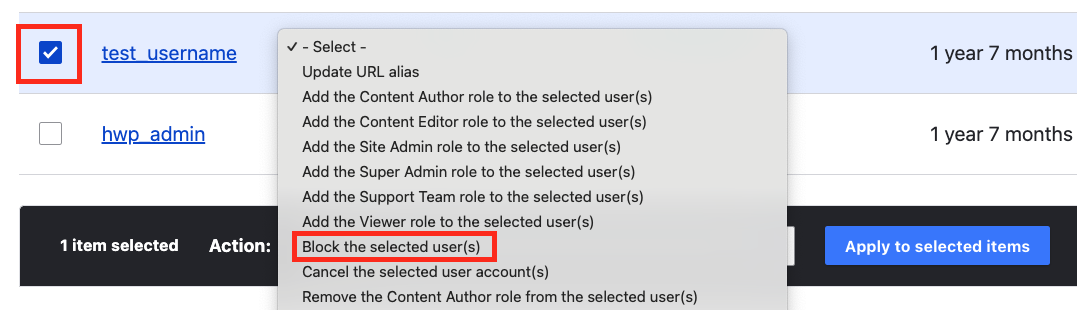
- To remove a user's access from your site, select the checkbox next to the username(s) you would like to remove.
- At the bottom of the list select the dropdown menu next to Action
- Select Block the selected user(s) the Apply to selected items
- You will get a status message saying "Block the selected user(s) was applied to 1 item."
Related how-tos
Primary site contact
How to designate a primary site contact You can add primary site contacts for people who have already been added to your site. Navigate to People > Primary Site Contact. In the Primary site contact field, start entering the person's username (usually...

Related resources
Roles & Permissions
How to manage permissions and tasks for standard user roles, including Author, Editor, Site Administrator, and Viewer.

Roles & Permissions Table
How to choose the correct role for common website editing and management tasks.

Understanding roles in HarvardSites Drupal (VIDEO)
Understand the different roles and what they can do in HarvardSites Drupal.
