
Linking to on-page anchor links
How to link to a component or other content within a page
To link directly to a specific component or content within a page, you need to create a unique ID for the component that you can reference in links. We recommend using only lowercase letters, numerals, and hyphens (-), for example, “department-donors”.
Step 1: Create anchor link
Create an anchor link within text
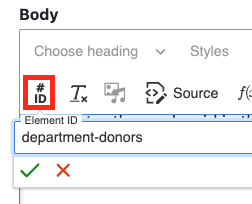
- Click on the #ID icon in the text editor
- Enter the anchor id in the Element ID field.
Create an anchor link on a component
- Locate the Page Anchor Link input field under the Block Settings or Settings tab for components and component content.
- Enter the anchor id in the Page Anchor Link field.

Step 2: Link to an anchor link
The method for linking to an anchor depends on the source of the link. This example describes how to create a text link using the editor toolbar.
- Select the text to link from the text input area.
- Select the Link button in the editor toolbar (see Text Editor for details about using the toolbar and text input area).
- Enter the first few letters of the name of the content, for example, “History” to link to the History of the Department page or “Grace C” to link to the Grace Chan person page. Select the desired content from the autocomplete Content menu (see Internal Links for guidance on linking content within a site).
- Add “#” followed by the page anchor link ID created in the content, for example, “history#department-donors” to link to https://drupaldemo.harvardsites.harvard.edu/history#department-donors.

Related resources
Checking for (and managing) broken links on your HarvardSites site
Identify, fix, and prevent broken links on your site.

Content URLs
How content URLs are generated and managed on the platform.

Internal Links
How to link different types of content and content types within your site
