
Text Editor
When you are editing pages, there is a toolbar that provides a “What You See Is What You Get” (WYSIWYG) display to speed up your content formatting. You can hover or focus on each of the tools to see a tooltip with more detailed description.
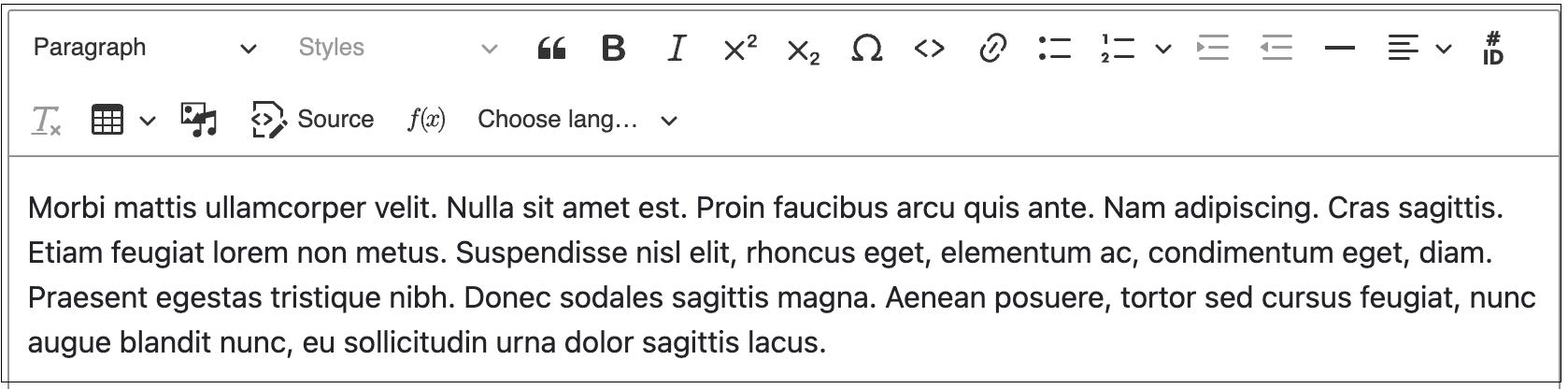
The tools are as follows:
- Paragraph: Add headings and subheadings to your content for accessibility and readability. Use the paragraph setting for basic text, Heading 2 to introduce a new section, and Heading 3 for subsections.
- Styles: Apply a style to text. Available styles include a Checkmark List style for bulleted lists and a Callout Text. Callout Text will enlarge a block of text on your page to highlight it.
Quote: Add a quote to your content.
Bold: Bold selected text.
Italic: Italicize selected text.
Superscript/Subscript: Position a number or letter above or below the surrounding text.
Special Characters: Add a special text character.
Code: Add code to your content.
Link: Add a link to selected text (see Internal Links for guidance on linking content within a site).
Bullets/Numbering: Add a bulleted or numbered list to your content.
Text Indent: Indent the selected text left or right.
Horizontal Rule: Add a horizontal line to separate content.
Text Align: Align the selected text left, right, or center.
Set element ID attribute: Add a unique ID to selected text. This will allow you to create anchor links to this specific place on your page (see Linking to on-page anchor links).
Remove Text Formatting: Remove formatting from selected text.
Insert Table: Add a table to your page for tabular data (see Adding a table).
Insert Media: Add images or video within your content (see Images Sizes).
- View Source Code: Allows you to view the underlying HTML code of your page (often used for identifying and troubleshooting formatting issues).
- Insert Math Equation: Render complex equations, such as fractions, matrices, and roots using the LaTeX format.
- Choose language: Assign a language to the selected text (see Language Support).